Customer Dashboard
Set up a loyalty dashboard page where customers can check their balance, browse rewards, and manage their account.
The customer dashboard is a WordPress page you build and own. When a customer logs in, they can check their credit balance, see ways to earn more, browse available rewards, view coupons they have already claimed, and share their referral link. You decide which sections show up and how the page is laid out.
Creating the dashboard page
Head to Pages > Add New in your WordPress admin, give the page a title (something like "My Rewards" works well), then open the block inserter with the + button in the editor toolbar.
You have two ways to build the page. You can add individual blocks and arrange them however you like, or you can drop in a pre-built pattern that puts a complete layout together for you in one click.
Using patterns
Patterns are pre-arranged sets of blocks that fill out a full section instantly. Open the block inserter, switch to the Patterns tab, and browse the Leat category. Click any pattern and it lands in your page ready to edit.
Available patterns
| Pattern | What it includes |
|---|---|
| Complete Loyalty Dashboard | Every section in one go: hero, earn rules, spend rules, coupons, tiers, and referral |
| Loyalty Hero with Image | A banner showing the customer's balance with an optional join CTA |
| Earn Rules Section | A heading and the earn rules list |
| Spend Rules Section | A heading and the spend rules list |
| Coupons Section | A heading and the coupons list |
| Tiers Section | A heading and the tiers list |
| Referral Section | A heading and the referral block |
Available blocks
You can also build the page block by block from scratch. The Leat blocks fall into two groups.
Content blocks
These work like normal WordPress blocks but know about the customer's loyalty status.
- Loyalty Heading - A heading that shows different text depending on whether the visitor is logged in, enrolled, or not yet a member. You can use variables like
{{credits}}to pull in the customer's live balance right inside the heading. - Loyalty Paragraph - Body text that also adapts to login and enrollment state. Good for writing a personalized welcome or explaining how the program works.
- Points Display - Shows the customer's current credit balance. Put it anywhere on the page.
- Product Points - Place this on a product page to show how many credits that specific product earns.
Loyalty blocks
These are the interactive parts your customers will use day to day.
- Join Program Button - Only shows up for customers who have not enrolled yet. It hides automatically once someone joins.
- Earn Rules List - All the ways customers can earn credits: purchases, referrals, birthdays, and any others you have set up.
- Spend Rules List - The rewards customers can claim using their credits.
- Coupons List - Coupons the customer has already redeemed, ready to copy and apply at checkout.
- Tiers List - The full tier structure with progress tracking for enrolled members.
- Referral Rewards - The customer's personal referral link, share buttons, and their referral stats.
Previewing as different user types
While editing in the block editor, click the Leat icon in the top-right corner of the toolbar. This opens a Preview As panel where you can choose which user type to view the page as:
- Guest user: visitor who is not logged in
- Logged In (Not enrolled): logged-in customer who has not joined the program
- Enrolled member: active loyalty member
All Leat blocks on the page update immediately to reflect the selected state, so you can check every message variation without leaving the editor. The panel shows the current preview state at the bottom.
Linking the page in settings
Publishing the page is only half the job. You also need to point Leat to it.
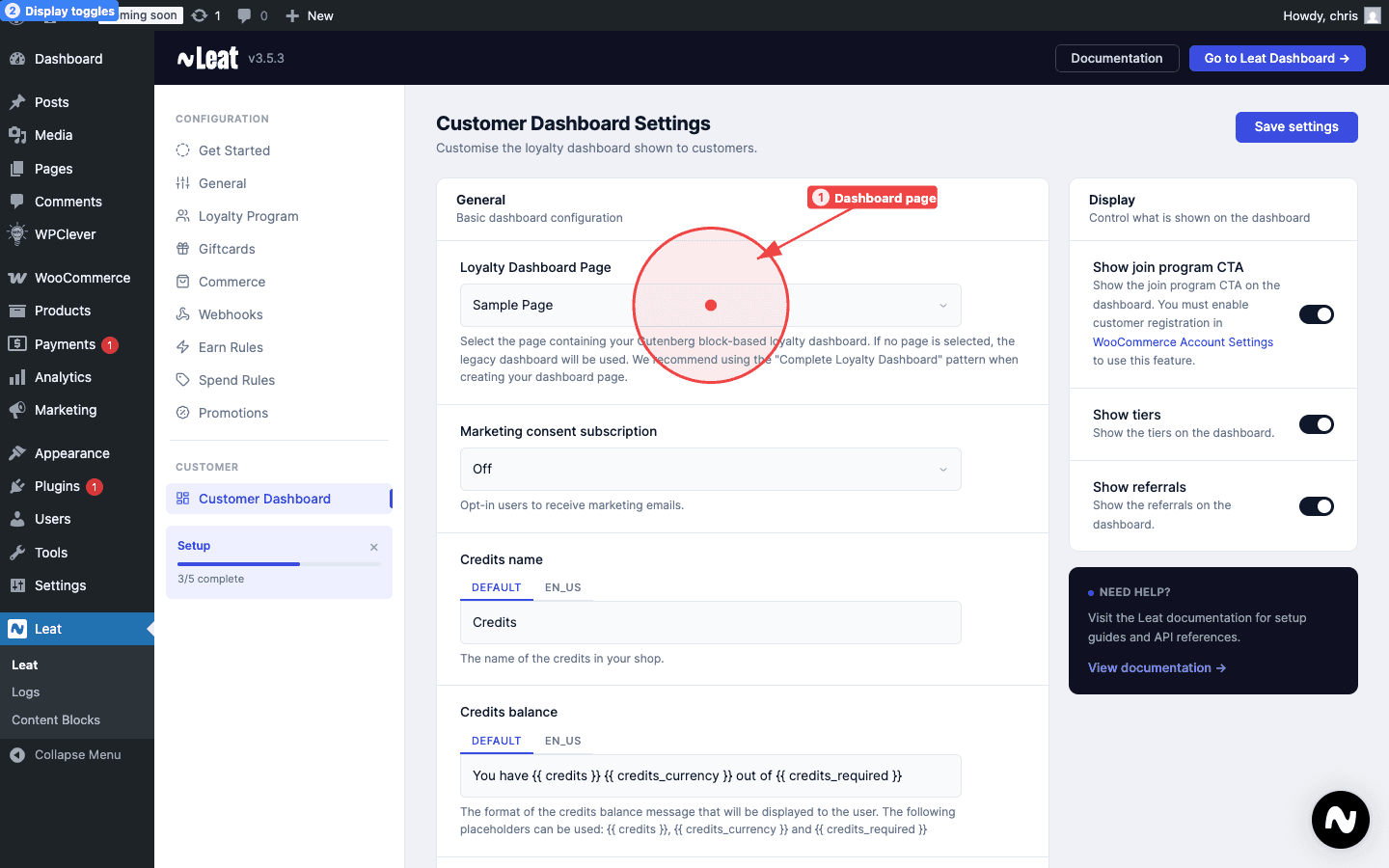
Go to Leat > Dashboard Settings, find the Dashboard Page field, and select the page you just published. After that, the Loyalty tab in WooCommerce My Account will pull its content directly from that page.
Customizing dashboard text
You do not need to edit any blocks to change the words on the dashboard. Leat > Dashboard Settings has text fields for:
- Section titles and headings
- Button labels
- Empty state messages (what customers see when a list has nothing to show yet)
- Navigation labels
So if your loyalty program uses "coins" instead of "credits," you can update that language here. You can also adapt the tone for your brand or translate everything into another language.
Enabling and disabling sections
Not every store needs every section. In Dashboard Settings you can toggle these on or off:
- Tiers - Turn this off if you are not running a tiered program.
- Referrals - Hide the referral section if the referral feature is not active.
- Join CTA - Control whether non-enrolled visitors see a prompt to join.
My Account tab
The plugin adds a Loyalty tab to the WooCommerce My Account page automatically. Customers can get to their dashboard right from their account without needing to find the page themselves.
Set the tab label in Leat > Dashboard Settings under My Account Tab Title.
Legacy shortcodes
If you are working in the classic WordPress editor, or using a page builder that does not support Gutenberg, shortcodes are available. Paste any of these into your page or post content.
[leat_customer_dashboard]
Renders the full loyalty dashboard with all enabled sections. This covers the same ground as the Complete Loyalty Dashboard pattern.
[leat_reward_points]
Outputs the customer's current credit balance inline. Handy for dropping a balance display into a paragraph of text.
[leat_referral]
Renders the referral section on its own, including the customer's link and share interface. The customer must be logged in to see it.