Promotions
Create voucher code campaigns that automatically distribute discount codes to your customers.
Promotions let you run voucher code campaigns from your WordPress admin. You set the discount rules, and Leat takes care of generating and distributing the codes. Unlike rewards, which customers earn by spending loyalty credits, promotions send voucher codes to customers automatically, for example through order confirmation emails.
Promotions vs. rewards
It helps to understand the difference before you start:
- Rewards (also called spend rules) are part of your loyalty program. Customers earn credits on purchases and then redeem those credits for discount coupons through the loyalty dashboard.
- Promotions are standalone voucher campaigns. You define the discount, set the rules, and Leat generates unique codes and distributes them. Customers do not need to spend any credits to receive a promotion voucher.
Promotions are a good fit when you want to run a sale, reward a specific segment of customers, or offer a welcome discount that sits outside your loyalty points system.
Finding promotions in your admin
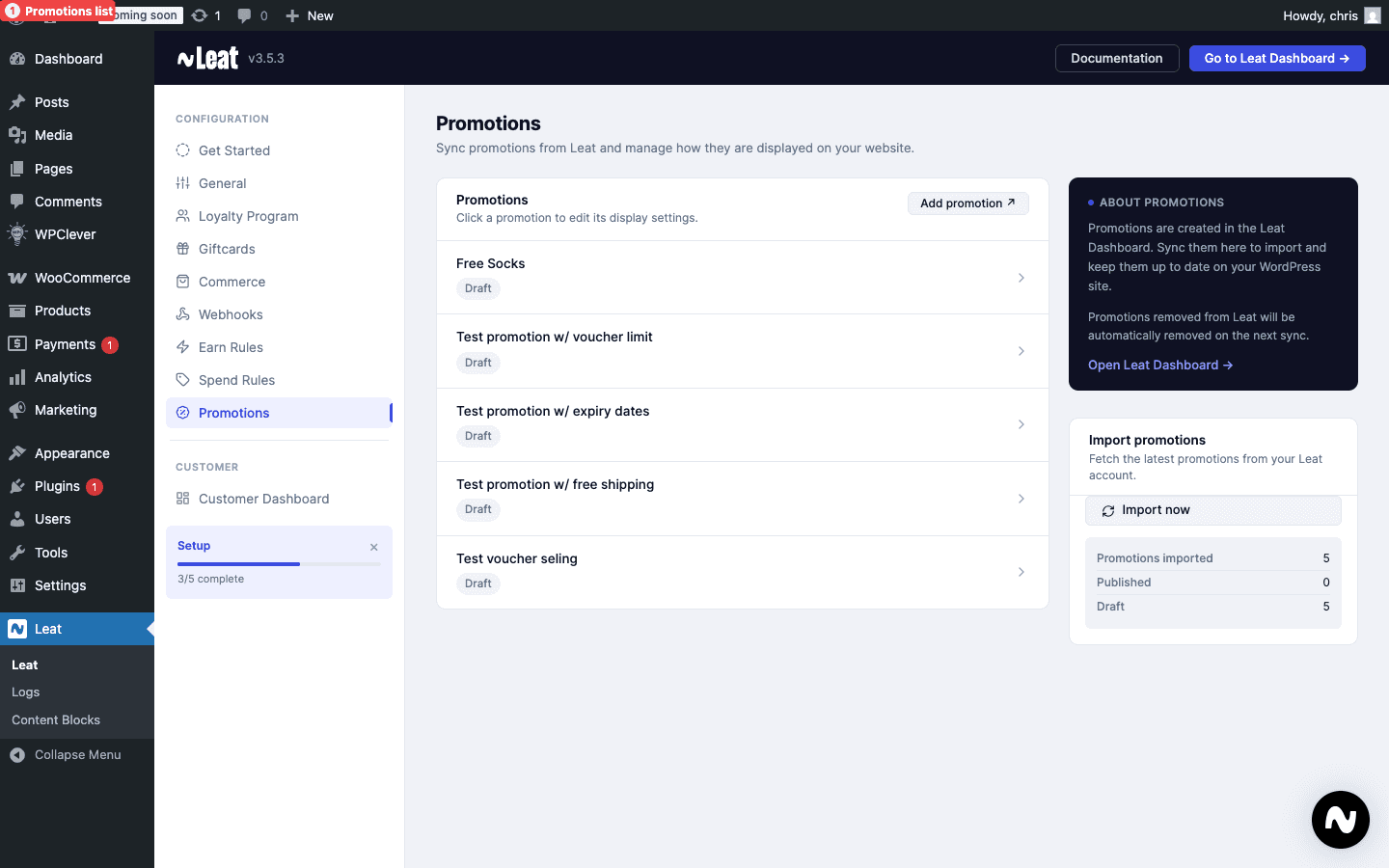
Go to Leat > Promotions in your WordPress admin sidebar. You will see a list of your promotion rules, each showing its title and current status. Click any rule to open and edit it, or click Add New to start a fresh campaign.
Creating a promotion rule
When you open a promotion rule, you will find the fields that control how it works. Fill everything in and save. The promotion stays inactive until you set the status to Published.
Title
Give your promotion a clear internal name, like "Summer Sale 10% Off" or "New Customer Welcome Discount." This is what you see in the admin list and is never shown to customers.
Label
The label is the customer-facing name that appears on the voucher itself, for example "10% off your next order." It can be translated into multiple languages if your store supports them.
Discount settings
Discount type
Choose how the discount is applied:
- Percentage discount reduces the order total by a percentage. Entering 15 gives the customer 15% off.
- Fixed amount discount removes a set amount from the order total. Entering 5 gives the customer $5 off (or the equivalent in your store's currency).
Discount value
Enter the discount amount. For a percentage type, enter the number. For a fixed amount, enter the currency value.
Targeting and restrictions
Selected products
Restrict a promotion to specific products or product categories. When products are selected, the voucher will only work if the cart contains at least one of them. Leave this blank to allow the voucher on any order.
Minimum purchase amount
Set a minimum order total the customer must reach before the voucher applies. Entering 50 means the customer needs to spend at least $50 (before the discount is applied) for the code to work. Leave it blank for no minimum.
Usage and limits
Voucher limit
The maximum number of voucher codes that can be generated for this promotion. When the limit is hit, no more codes are created. This works well for capped campaigns like "first 100 customers only." Leave it blank for unlimited codes.
Usage limit per customer
How many times a single customer can use this promotion. Set it to 1 for a one-time-per-customer offer. Set it higher if you want to let the same customer use it more than once.
Individual use
When turned on, this voucher code cannot be combined with other coupons at checkout. Turn it off if you are happy for customers to stack it with other offers.
Redemptions per code
How many times a single voucher code can be redeemed across all customers. Setting it to 1 means each unique code is single-use. Setting it higher allows the same code to be used by multiple people.
Expiry
Expiry duration
The number of days a voucher is valid after it is issued to a customer. Entering 30 gives each customer a 30-day window to use their code. Leave it blank if vouchers should never expire.
Promotion status
Each promotion is in one of three states:
- Draft - Saved but not active. Codes will not be generated or sent out yet. Use this while you are still setting things up.
- Published - Live. Codes are generated and distributed automatically. When a rule is first published, a voucher sync kicks off in the background to create the codes.
- Private - Exists in the system but is not publicly accessible. Good for internal testing or invite-only campaigns.
Set the status to Published when you are ready to launch.
How voucher codes are distributed
Promotion codes reach customers in two ways:
- Order confirmation emails - After a qualifying order, the voucher code is included in the WooCommerce order email.
- Vouchers section - Codes also appear in the customer-facing vouchers area, so customers can find their active codes whenever they need them without searching through old emails.
Syncing with the Leat platform
Your promotions are kept in sync between WordPress and the Leat platform. Publishing a new promotion triggers an automatic sync that generates the voucher codes. The sync processes up to 50 promotions per batch, so even large campaigns run smoothly.
Updates to a promotion rule are pushed to Leat on the next sync cycle. You do not need to do anything manually.