Referrals
Give every enrolled customer a unique referral link and reward them when their friends sign up.
The referral program turns your existing customers into word-of-mouth for your store. Every enrolled customer gets a unique referral link. When someone new signs up using that link, the referral is tracked and the referring customer earns a reward. Once you've configured your referral program in Leat, the whole thing runs automatically.
How referral links work
Each enrolled customer has a unique referral code in their Leat contact record. The plugin builds a referral URL by adding a ?ref=CODE parameter to your store's homepage. Customers share this link with friends, and when someone visits through it, the plugin reads the code from the URL and starts tracking the referral.
You don't need to set up URL rules or redirects. The plugin handles the parameter automatically.
Cookie tracking
Not everyone signs up the moment they land on a new site. To cover this, the plugin stores the referral code in a browser cookie that lasts 30 days. If a visitor clicks a referral link today but doesn't create an account for another two weeks, the referral still gets attributed correctly when they register.
The cookie is set as soon as the ?ref=CODE parameter is detected. Once a new customer account is created and linked to the referring customer, the cookie is cleared automatically.
How referrals are attributed
When a new customer creates an account, the plugin checks for a stored referral code, either from the cookie or the current URL. If it finds one, it links the new customer to the referring customer in Leat. From there, Leat handles the reward based on the referral rules you've configured in your program.
Attribution happens at account creation. A customer can't be linked to a referral after they've already registered, so the timing of the sign-up is what counts.
The referral section on the dashboard
The referral section on the customer dashboard gives enrolled customers what they need to share their link and see how it's performing. It shows:
- Their referral link - With a copy button so they can grab it instantly.
- A share button - Opens the browser's native share sheet on mobile, or copies the link on desktop.
- People referred - How many people have signed up using this customer's link.
- Successful referrals - How many of those referrals have been completed, based on the conditions you've set in Leat.
Enabling and disabling the referrals section
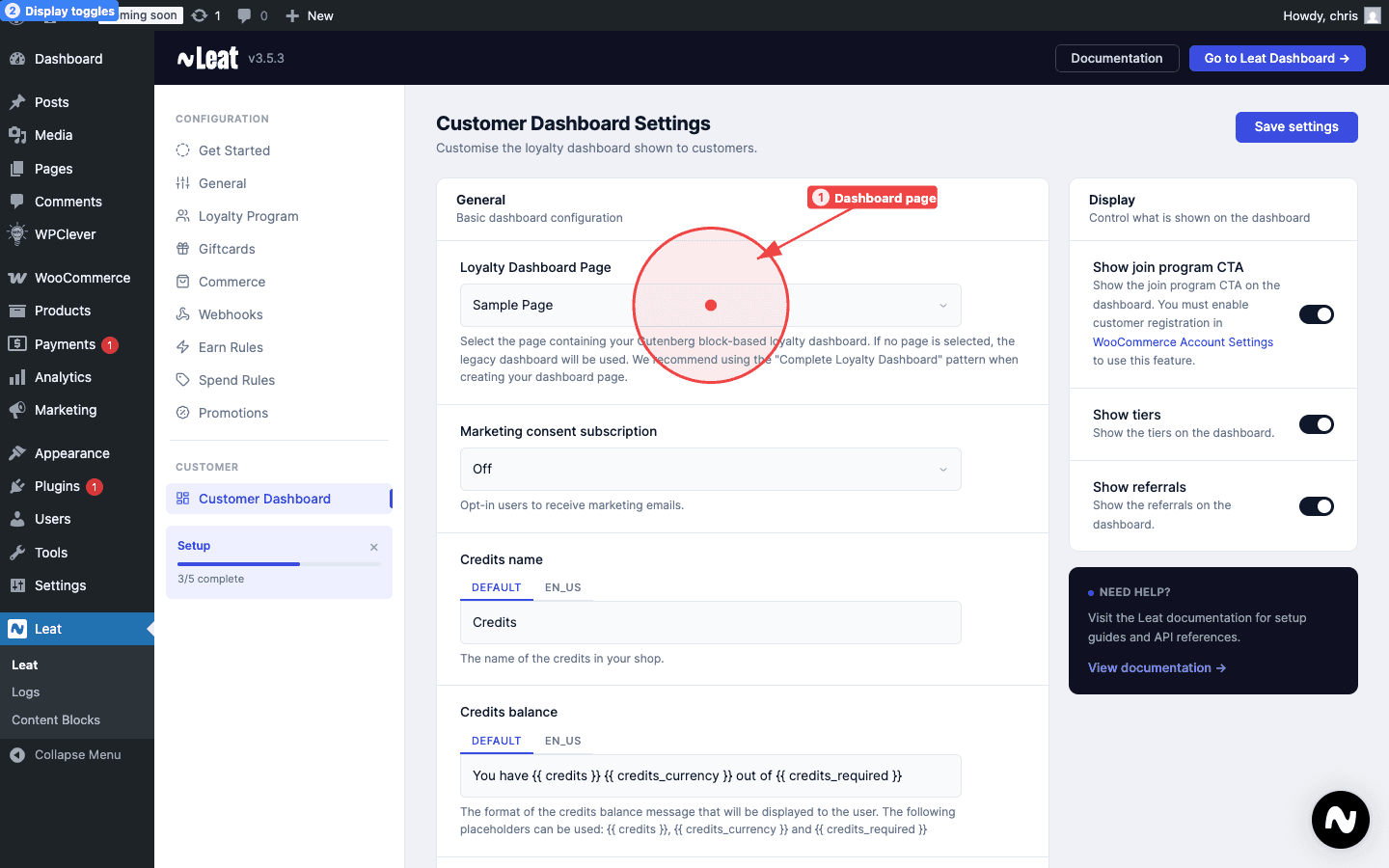
To show or hide the referrals section on the built-in loyalty dashboard, go to Leat > Dashboard Settings and flip the Show referrals toggle. When it's on, the section appears on the My Account loyalty dashboard. When it's off, it's completely hidden.
If you're using a custom loyalty page with blocks, control the referral section by adding or removing the Referral Rewards block directly on that page.
Customizing the referral text
All the text in the referral section can be changed to fit how your brand sounds. Go to Leat > Dashboard Settings and scroll down to the referral text fields. You can update:
- Referrals description - The intro text at the top of the referral section. Default: "Share your referral link with friends and earn rewards when they sign up!"
- Referral link title - The label above the customer's referral link. Default: "Your Referral Link."
- Share link button - The share button label. Default: "Share Link."
- Share text - The message pre-filled when sharing via the native share sheet. Default: "Join me and start earning rewards!"
- Share title - The title sent when sharing via the native share API. Default: "Referral Link."
- People referred title - The label for total sign-ups through this customer's link. Default: "People Referred."
- Successful referrals title - The label for completed referrals. Default: "Successful Referrals."
- Copied message - The confirmation that appears after copying the link. Default: "Copied!"
All of these fields support translation if your store runs in multiple languages.
The Referral Section block pattern
To add a referral section to a custom loyalty page, use the Referral Section block pattern. In the WordPress block editor, open the Patterns tab in the inserter and search for "Referral Section." It inserts a heading, a short description, and a pre-configured Referral Rewards block. Edit the text and styling to match the rest of your page.