Rewards
Sync your Leat rewards into WordPress and let customers redeem credits for WooCommerce coupons.
Rewards are what your customers spend their credits on, things like a discount on their next order or a free product. You create and manage them in the Leat business dashboard at business.leat.com/loyalty/rewards. After creating them there, you sync them into WordPress, where they appear as spend rules. From that point you can activate each one and fine-tune how it behaves at checkout.
How rewards get into WordPress
When you first connect your API key and shop, Leat automatically pulls your rewards into WordPress. After that initial sync, any rewards you add or change in the Leat dashboard need to be synced manually.
To run a manual sync:
- Go to Leat > Loyalty Program in your WordPress admin.
- Click the Sync now button.
- Wait a moment for it to finish. Your rewards will show up in the spend rules list.
The sync pulls everything from Leat and creates or updates the matching spend rules in WordPress.
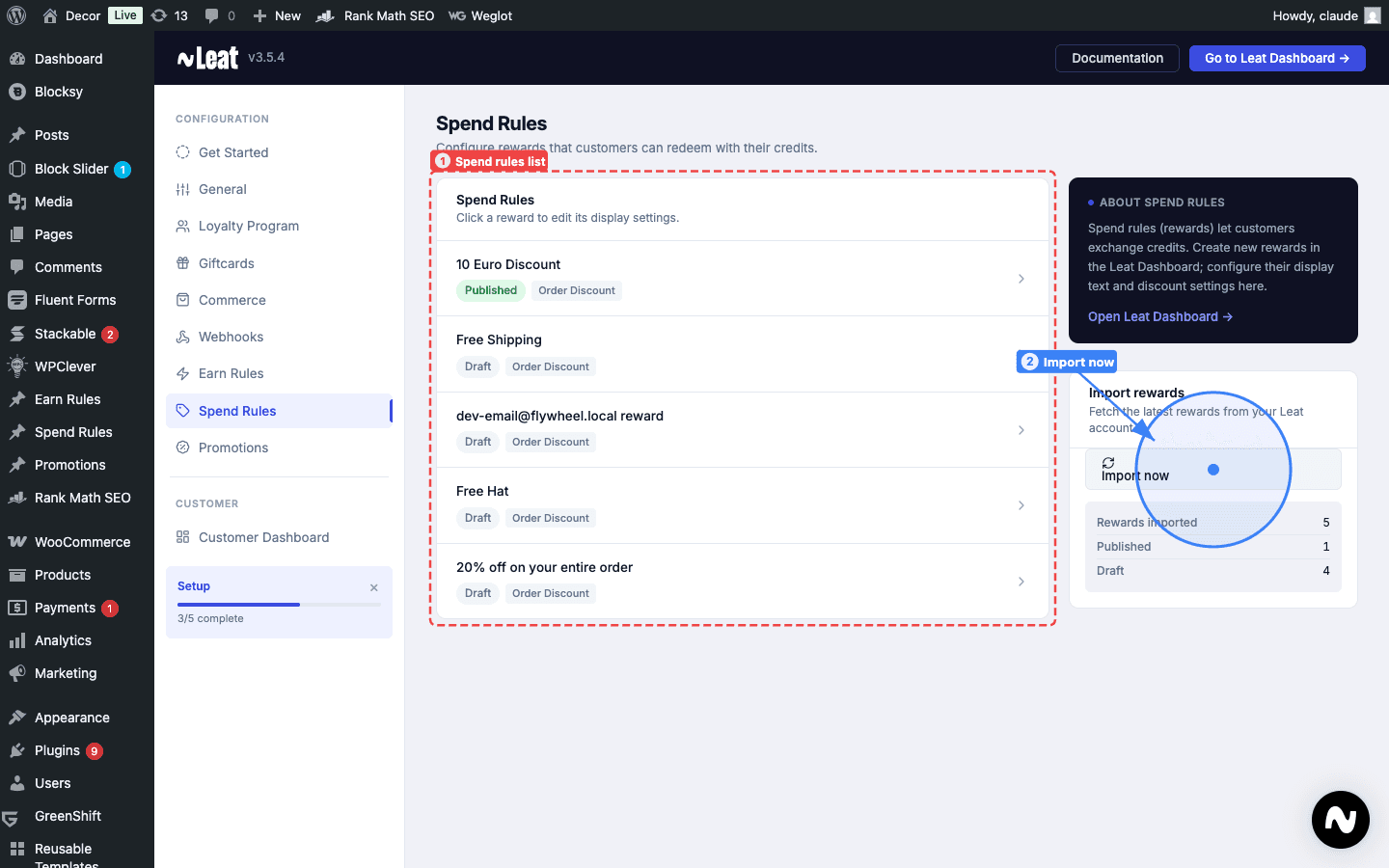
Why rewards are inactive after syncing
Freshly synced rewards land in WordPress as drafts. They're not visible to customers yet. This is on purpose. A new reward might need a minimum spend requirement or a usage limit before it's ready. You get a chance to sort all that out before anything goes live.
Take a few minutes to open each reward after syncing and check that the settings look right.
Activating a reward
Once you're happy with the settings, here's how to make a reward live:
- Open the spend rules list under Leat > Loyalty Program.
- Click on the reward you want to activate.
- Change the Status dropdown from Draft to Published.
- Save.
The reward will appear on your loyalty dashboard for any enrolled customer who has enough credits to claim it.
Need to pull it back? Set it to draft again. It disappears from the dashboard straight away, but all your settings stay saved.
Configuring a reward
Click on any reward in the spend rules list to open its configuration form.
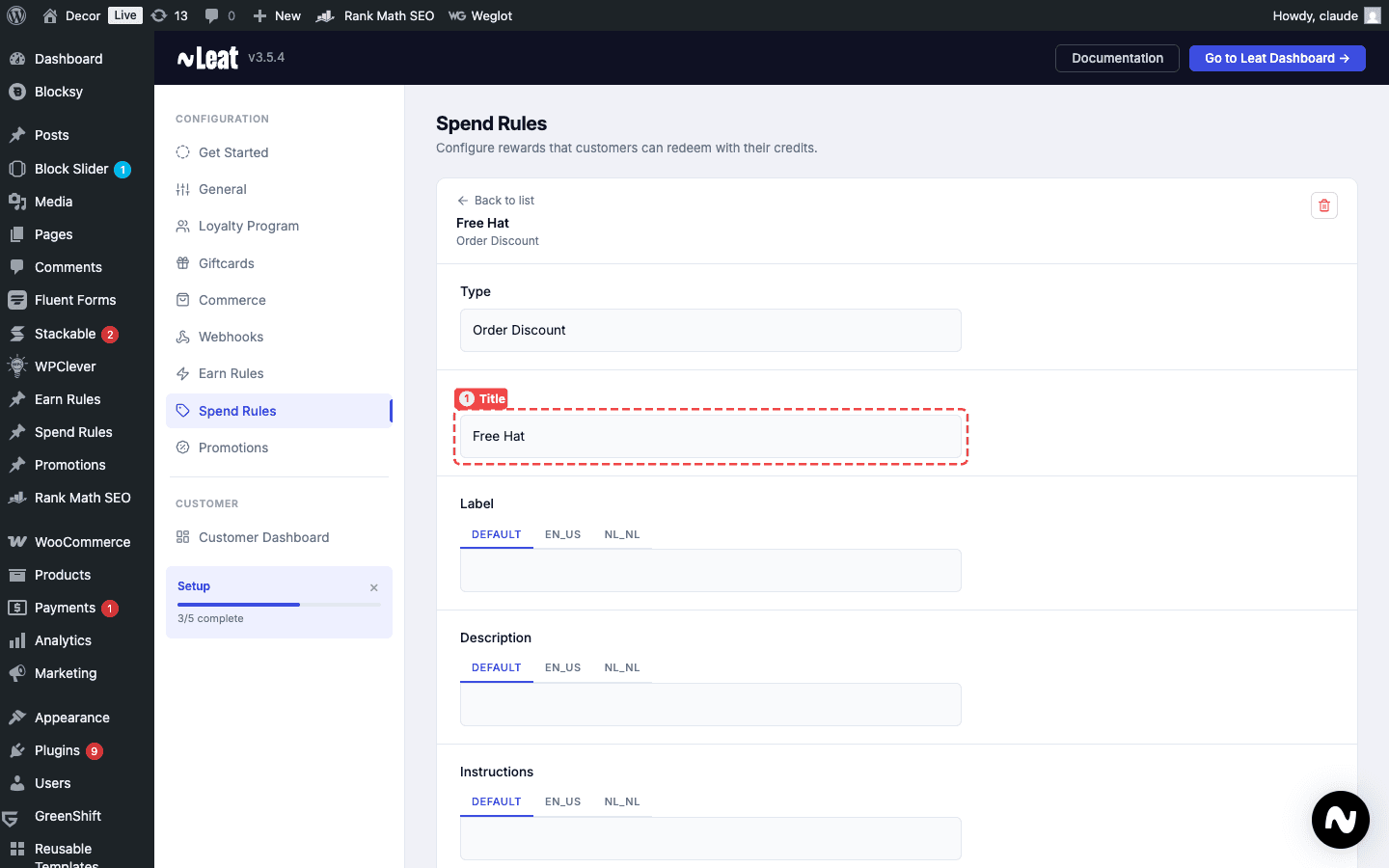
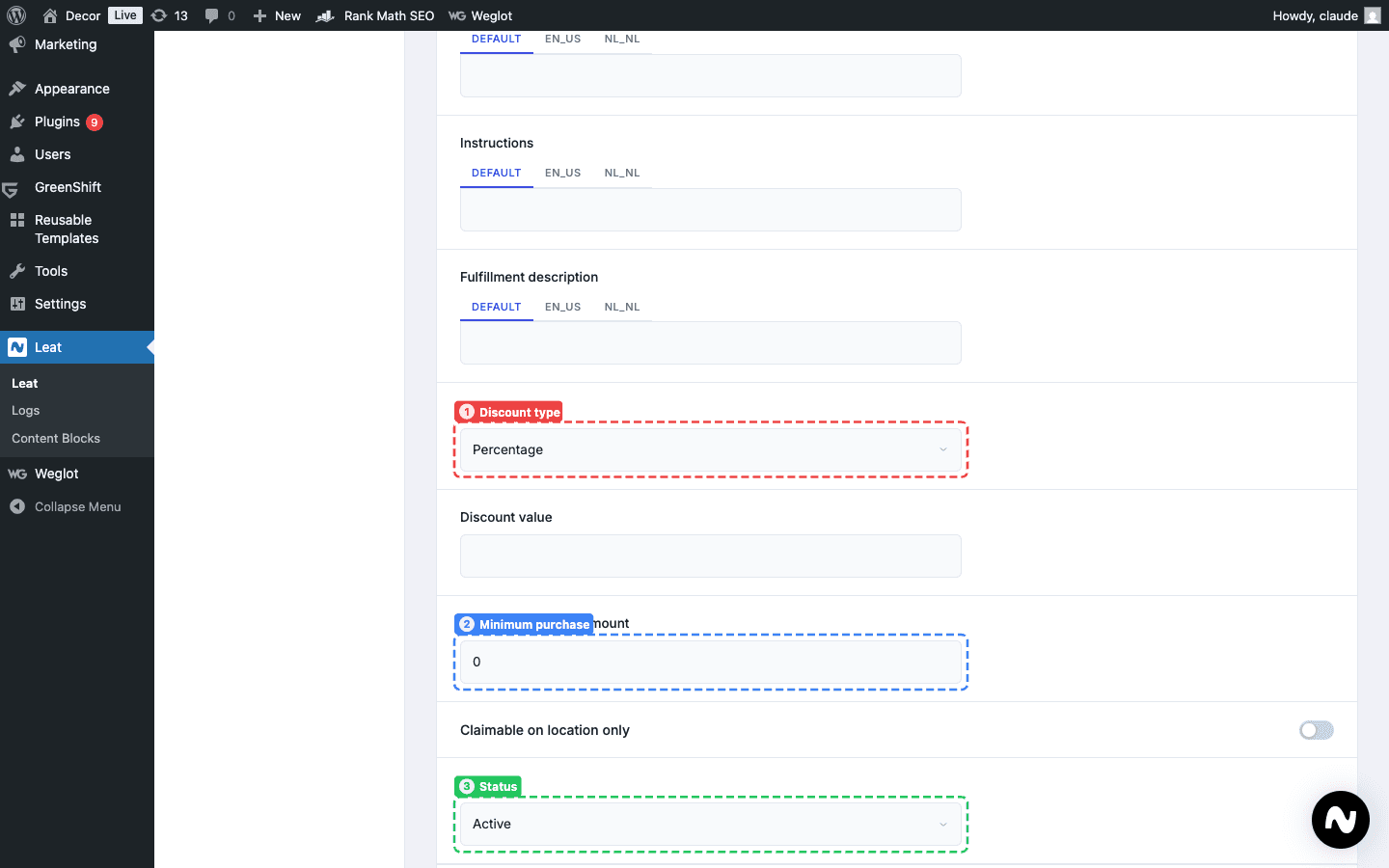
Each spend rule has settings that control how the coupon behaves when a customer redeems it:
- Title (1) - The reward name, synced from Leat.
- Label - The text shown to customers on the reward card.
- Description - A short explanation of what the reward offers.
- Discount type (1) - Whether the coupon applies a percentage or fixed amount discount.
- Discount value - The size of the discount.
- Minimum purchase amount (2) - The minimum cart total needed for the generated coupon to apply. Set this to 50, for example, and the coupon won't work on orders under $50.
- Status (3) - Whether the reward is visible to customers or not.
How customers redeem rewards
When a customer has enough credits, they go to your loyalty dashboard and find the reward in the Spend Rules List. They click Redeem. Leat deducts the credits from their balance and WordPress creates a unique WooCommerce coupon code just for them.
That coupon works like any other WooCommerce coupon. They paste it in at checkout and the discount applies. The code also lives on their dashboard so they can copy it whenever they're ready.
Customers who are short on credits see a progress bar showing how close they are to unlocking a reward.
The Spend Rules List block
The Spend Rules List is a Gutenberg block that shows your active rewards on any page. Add it to your loyalty dashboard so customers can browse what's available and redeem rewards without leaving the page.
Each reward appears as a card. When a customer clicks Redeem, the block processes everything and shows the new coupon code right there on screen.
Settings you can adjust in the block editor:
- Columns - How many reward cards appear per row.
- Progress meter text - The message for customers who are close but not quite there, using placeholders like
{{current_balance}}and{{required_credits}}. - Button labels - Custom text for the redeem, sign-in, and join-program buttons.
- Cost badge - A badge on each card showing the credit cost. Toggle it on or off, and change the colors to match your brand.
- Empty state message - What customers see when there are no active rewards to show.
The Coupons List block
The Coupons List block shows customers the coupons they've already claimed. It's a good companion to the Spend Rules List on your dashboard page, so customers can see both what they can claim and what they've already got waiting.
Each coupon card displays the reward details and the coupon code. Customers can copy the code directly from the card.
The block works the same way as the Spend Rules List in terms of who sees what. Logged-out visitors see a sign-in prompt. Customers who haven't joined the program yet see an invite. Enrolled customers see their full coupon collection.
Re-syncing after adding new rewards
New rewards in Leat don't push to WordPress automatically. After creating one, head to Leat > Loyalty Program and hit Sync now. The new reward will show up as a draft in your spend rules list.
From there, open it, adjust any settings, set it to published, and save. It'll appear on the customer dashboard right away.
If you update an existing reward in Leat, syncing again will update the title and description in WordPress, but it won't reset the status or any local settings you've already configured.