Tiers
Show your loyalty tier structure on your WordPress site and let customers track their progress.
Tiers are loyalty levels that customers move through as they accumulate credits. Bronze, Silver, Gold, or whatever names you choose, they give customers a real reason to keep coming back and spend more. The plugin syncs your tier structure from Leat and displays it on your site so customers always know where they stand and what it takes to reach the next level.
Setting up tiers
Tiers are created and managed in your Leat account at business.leat.com, not inside the WordPress plugin. There you define each tier's name, the credit threshold to reach it, any benefits it includes, and the earn multiplier customers get at that level.
Once your tiers are set up in Leat, the plugin pulls that information automatically. There's nothing to import or sync manually. When a customer loads your loyalty page, the block fetches the latest tier data fresh from Leat.
Tier earn multipliers
Higher-tier customers can earn credits faster thanks to earn multipliers. You set the multiplier for each tier in your Leat account. A customer in a Gold tier with a 2x multiplier earns credits twice as quickly as someone in the base tier, which gives people a concrete reason to aim higher and stay there.
The multiplier applies automatically to order-based credit calculations. Nothing needs to be configured on the WordPress side.
Adding the Tiers List block
The Tiers List block shows your full tier structure as a card for each tier. Open any page in the WordPress block editor, search for Tiers List in the block inserter, and add it. You'll find it under the Leat category.
Each card shows the tier name, a description if you've written one in Leat, and any listed benefits. The card for the customer's current tier gets a highlighted border so it's easy to spot.
In the editor sidebar you can adjust:
- Columns - How many cards appear per row.
- Show description - Whether the description text appears below the tier name.
- Image height - The height of the tier image if you've uploaded one in Leat.
- Button text - Labels for the join, sign-in, and current-tier buttons.
- Button colors - Override button background and text colors to match your brand.
- Current tier border color - The highlight color on the active tier card.
The block is responsive and adjusts to smaller screens on its own.
The Tiers Section block pattern
Want to add a full tiers section fast? Use the Tiers Section block pattern. In the block editor, open the Patterns tab in the inserter and search for "Tiers Section." It drops in a heading, a short description, and a pre-configured Tiers List block in one go. From there, edit the text and colors to match the rest of your page.
What customers see
An enrolled customer visiting your page with the Tiers List block will see:
- All tiers laid out as cards in a grid
- Their current tier card with a highlighted border
- A progress indicator showing how many more credits they need to reach the next tier
- The benefits for each tier so they know exactly what they're working toward
Customers who aren't logged in see a prompt to sign in. Customers who are logged in but haven't joined the program yet see a prompt to enroll.
Showing tiers on the dashboard (legacy)
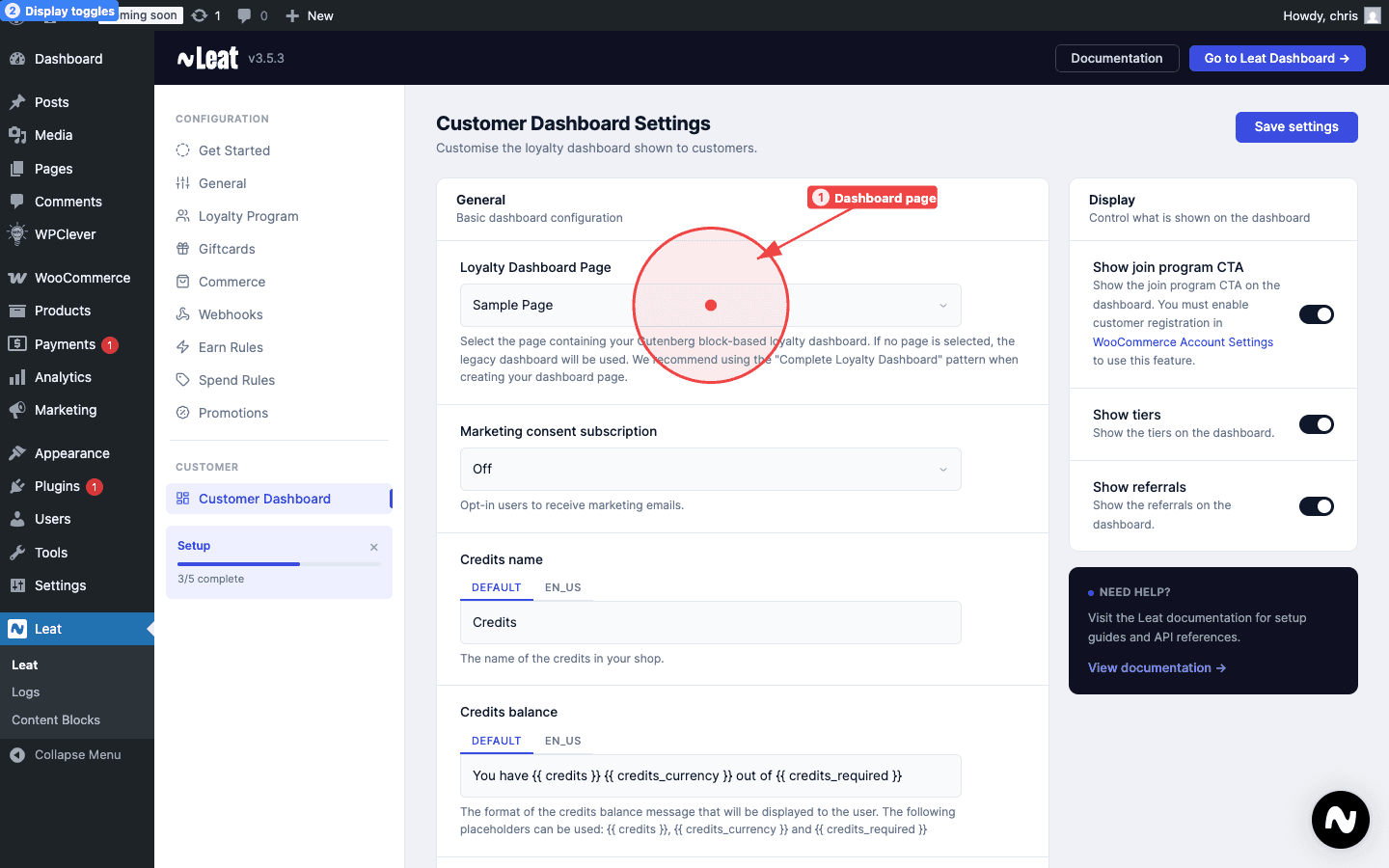
Go to Leat > Dashboard Settings in your WordPress admin and find the Show tiers toggle. Switch it on to show the tiers section on the built-in loyalty dashboard, or off if your program doesn't use tiers yet.
This toggle only affects the legacy [leat_dashboard] shortcode. If you've built a loyalty page using blocks, just add or remove the Tiers List block on that page directly.